
Here’s a clear, reliable step-by-step guide to registering with TruMerit (on https://www.trumerit.org), based on the official process:
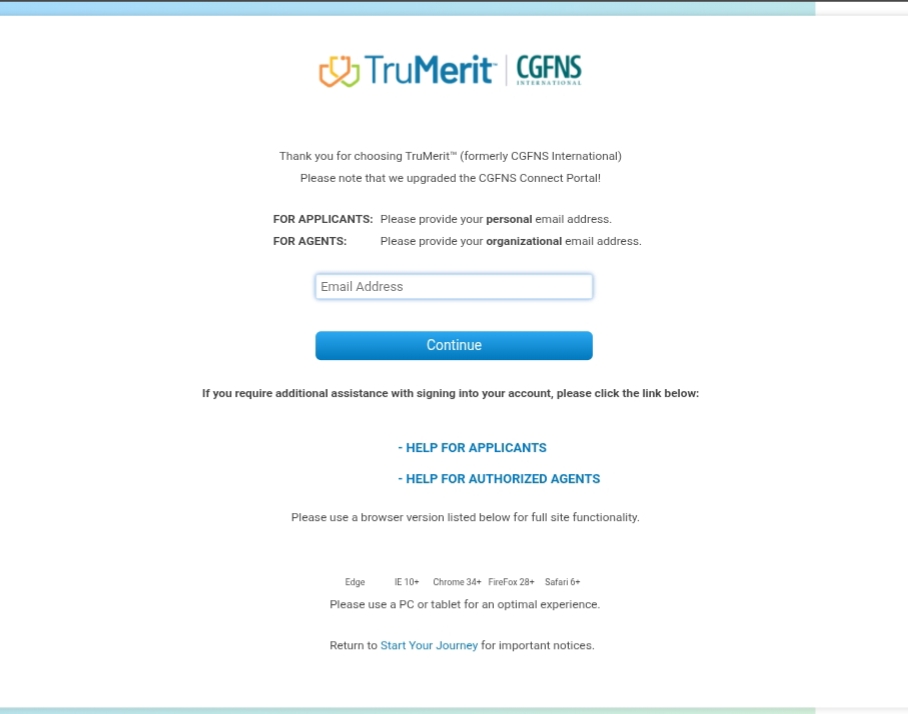
🧑💻 Step-by-Step Registration Guide
1. Open the TruMerit Applicant Portal
Go to the TruMerit registration portal. According to the official site, before applying for any service you must first set up a free account on their Connect portal — often labeled CGFNS Connect / New Connect Portal.
The direct portal link is typically accessible from “Start Here” or “Continue to CGFNS Connect Portal” on the TruMerit homepage.
2. Start a New Account
Once at the login/register page, choose Create New Web User / Register because you don’t have an account yet.
3. Enter Your Basic Information
On the registration form you will be asked for:
- Your personal email address (this will be your username).
- Your full name and date of birth.
- Indicate whether you already have a TruMerit ID number (if you’ve never registered before, select No).
4. Provide Optional Professional Details
The form asks whether you have:
- A passport — you’ll select your issuing country and enter the passport number.
- A professional license — if you do, supply the issuing country/jurisdiction and your license number.
> If you don’t have a license, you can simply indicate “No.”
5. Add Your Education Info
- Enter the country where you completed your initial professional education (e.g., nursing or allied health).
- Select your educational institution and graduation date from the dropdowns.
6. Agree to Terms & Conditions
You’ll be asked to accept TruMerit’s terms and online consent statements.
Make sure you review these before agreeing.
7. Verify Your Email
- After submitting the registration form, TruMerit will send a confirmation email to the address you provided.
- Open that email and click the verification link. This confirms your address and activates your account.
8. Create Your Password & Finish Setup
- Follow the link in the email to set your account password.
- Complete any additional security questions if prompted.
Once that’s done, you will be able to log in as a regular TruMerit user.
9. Log In to Your New Account
- Return to the portal login page.
- Sign in with your email and password.
You can now access the dashboard, order services, and upload documents as required.
Tips & Common Issues
If you forget your password, use the “Forgot Password” link — TruMerit will email you a reset/security code.
Read also: Debunking the Myth: TRUMERIT Registration Is Not Limited to GRNMA Members
The registration process itself is free — you are only charged when you order a specific service (e.g., evaluation, VisaScreen, credentials verification).